 claydash
Claydash app window
The center Viewport shows your model and is where you select and shape it. The Scene panel on the left lists objects and their Boolean relationships. Tabs on the right hold the selected object's Object, Materials, and Operand settings. Drag a tab to rearrange the workspace. Open the optional bottom Animation panel with Panels → Animation Timeline.
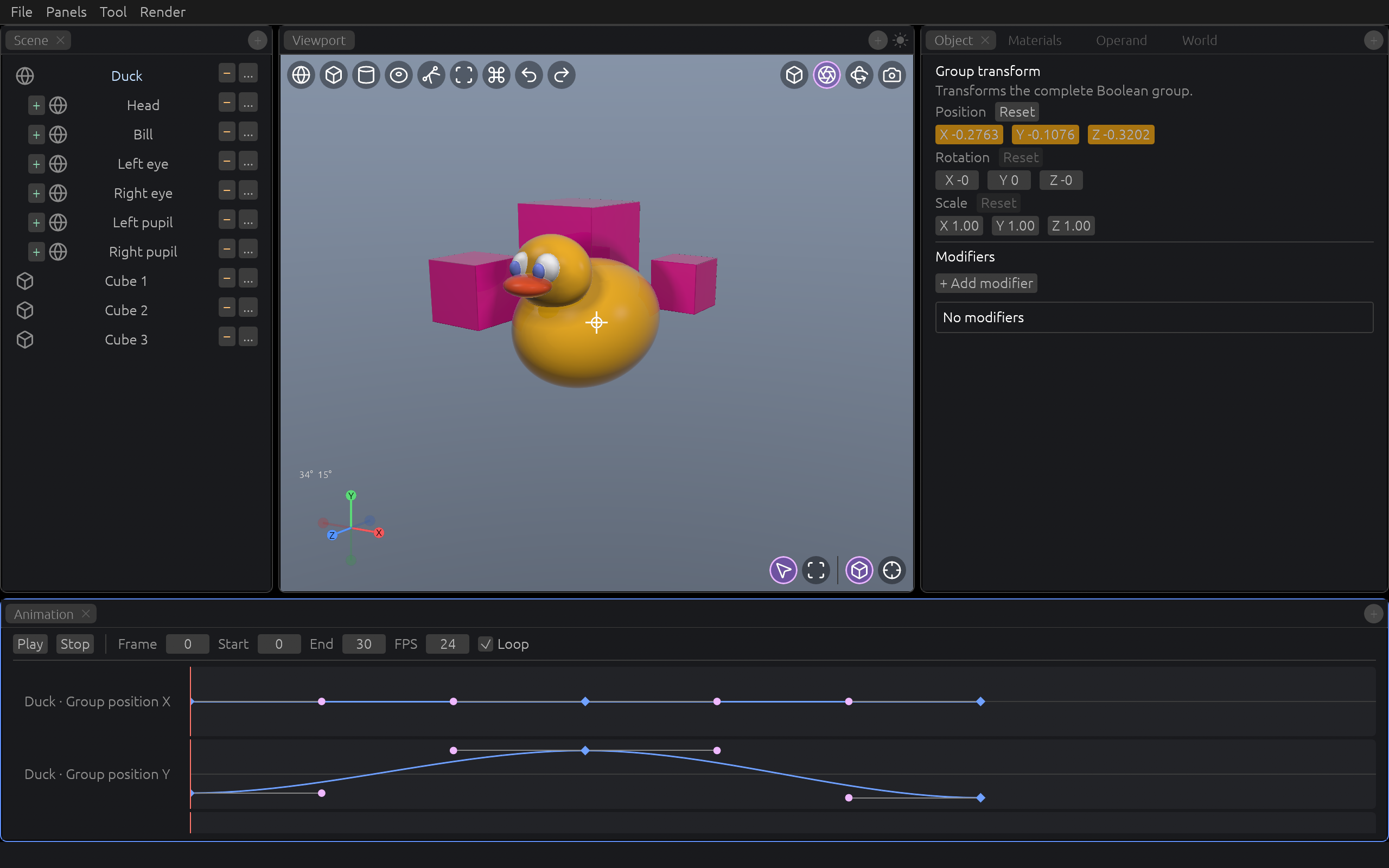
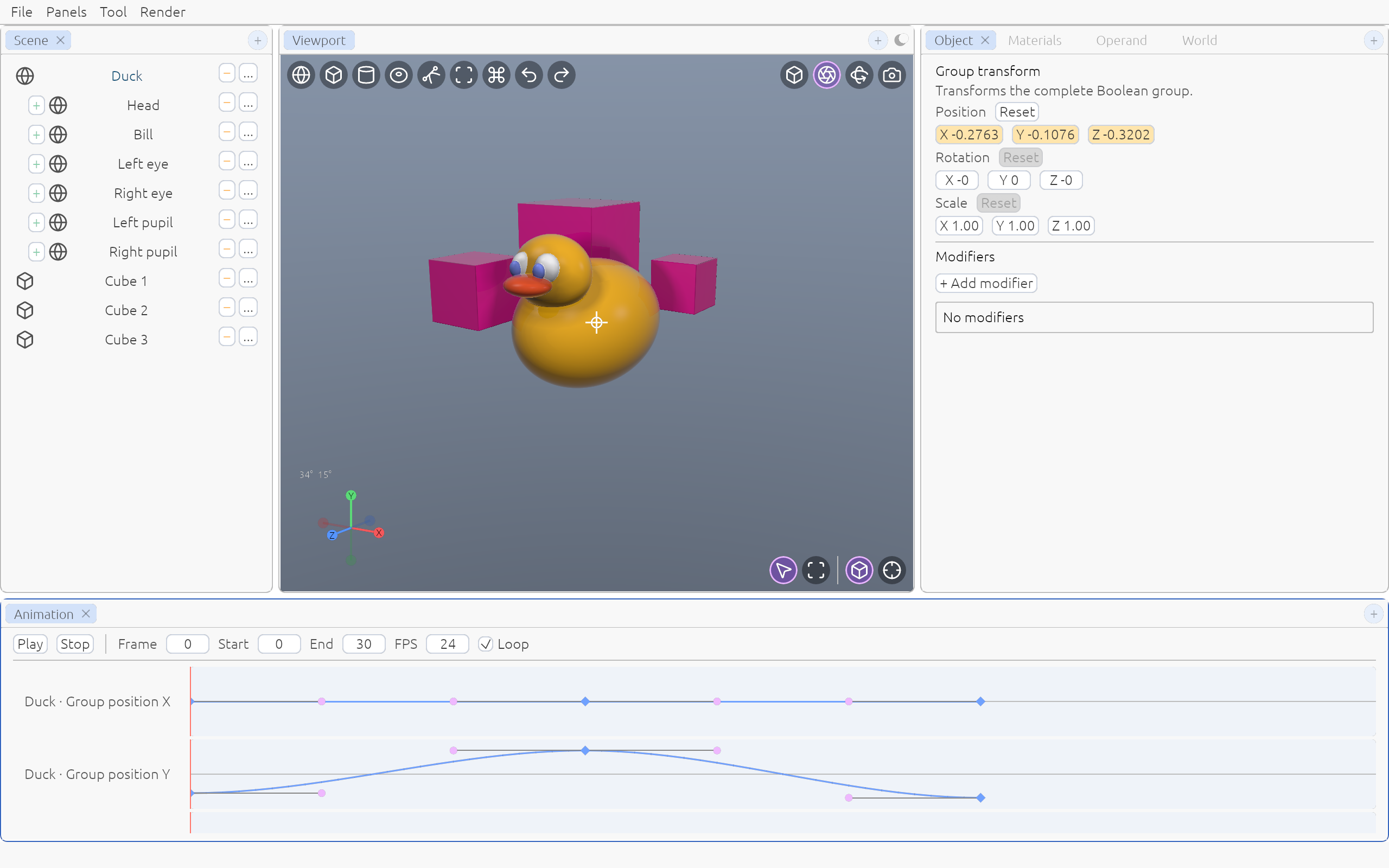
Top menu
File opens and saves projects, Panels opens the timeline, and Render exports a still or animation.
Viewport controls
Use the top-left buttons to add shapes, open the command palette, undo, and redo. The top-right buttons switch projection, toggle full-resolution refinement with the aperture icon, snap to an isometric view, and enter the active camera view. Refinement sharpens the live viewport after movement stops; turn it off for a faster preview. The sun or moon in the Viewport frame header switches between light and dark mode.
Selection and view
Click an object in the viewport or Scene tree to select it. Use the viewport's selection and transform tools to work directly on the model. The orientation gizmo in the lower-left corner helps you snap the view.
A word about SDF
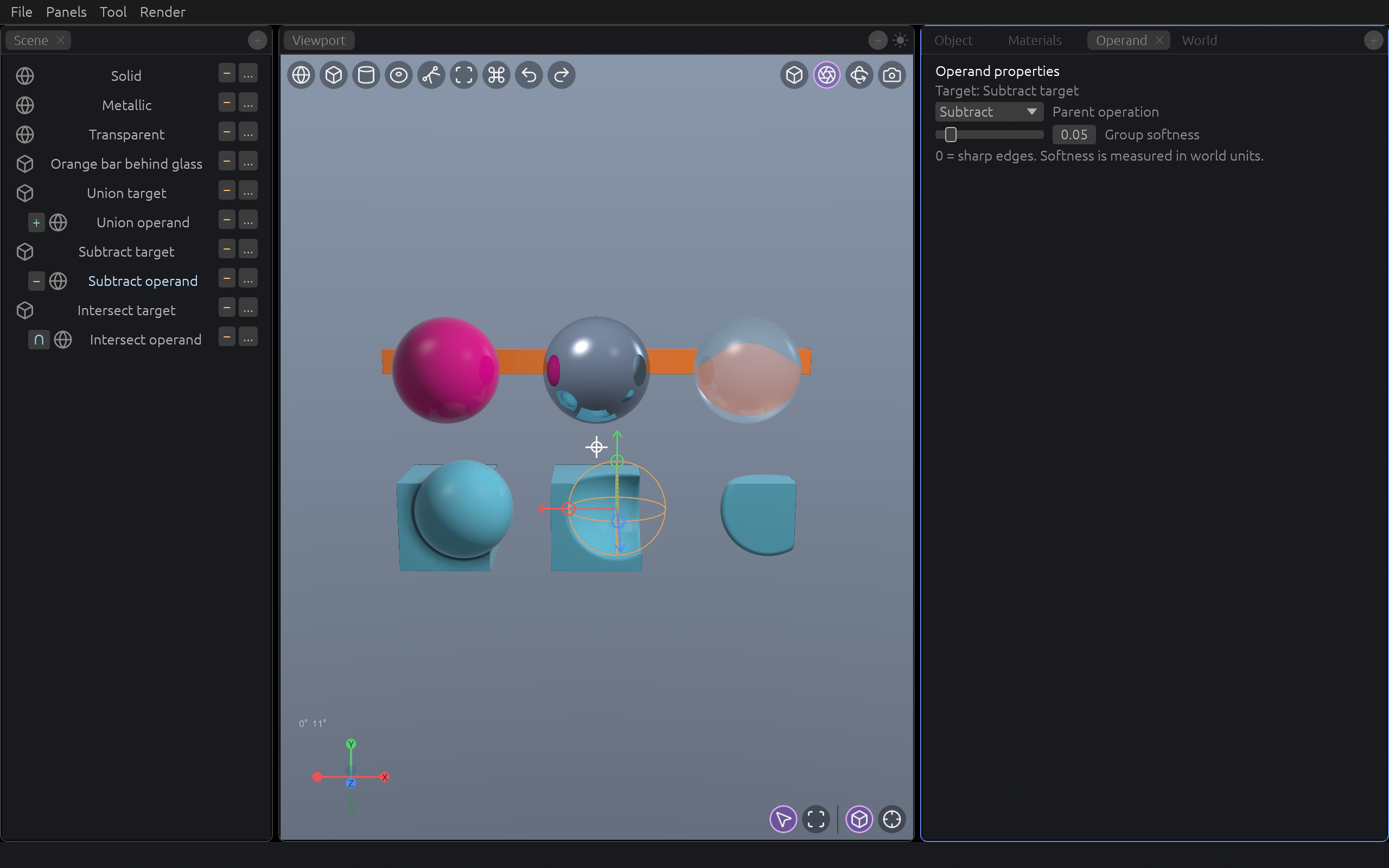
An SDF (signed distance field) describes a shape by the distance from any point to its surface. That makes operations such as union, subtraction, intersection, and soft blending natural: shapes can combine without manually joining polygon meshes. Claydash draws these fields by tracing rays through the scene, which can be slower than rendering ordinary meshes, especially with many objects, transparent materials, or complex Boolean groups.
Make and edit shapes
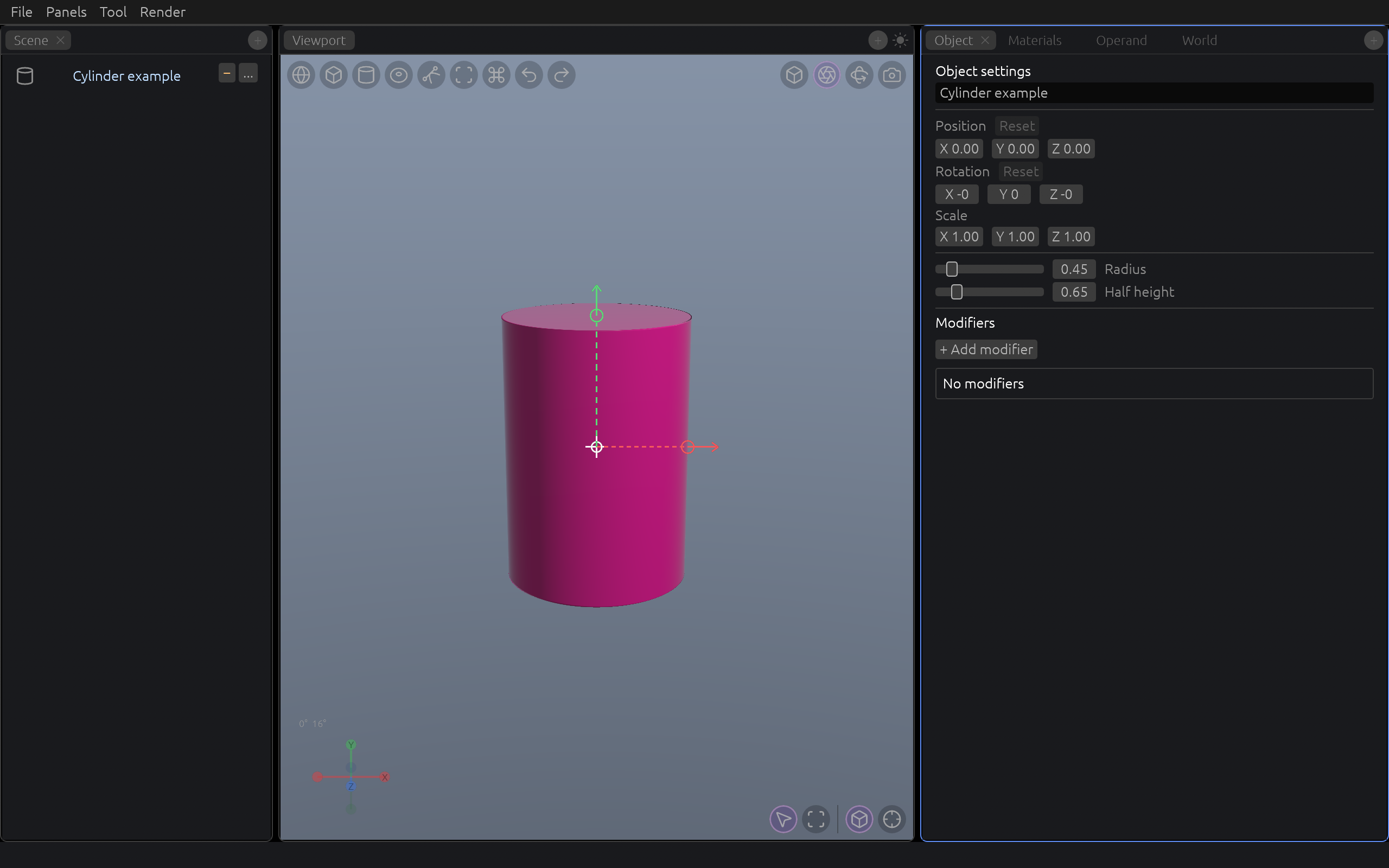
Add a sphere, box, cylinder, or torus with the shape buttons at the top-left of the viewport. In a narrow viewport, open the Add menu instead. The command palette (Cmd/Ctrl+Shift+P) also finds these actions. New shapes appear in the Scene tree and can be selected there or in the viewport.
Move, rotate, and scale a selection with G, R, and S. During a transform, press X, Y, or Z to constrain it to one world axis; press the same key again to unlock it. A first viewport click selects the object, a second enters its exact selection, and a further click selects a face when the shape supports it. With a face selected, G drags that face; otherwise it moves the object. The Object tab also lets you enter Position, Rotation, Scale, and shape dimensions precisely. Selected shapes show viewport handles for dimensions such as box faces, radius, cylinder height, and torus radii. Undo is available for these edits.
Movement and face edits can snap to guides from other boxes. Hold Alt while dragging to temporarily bypass a guide.
Use the viewport gizmos
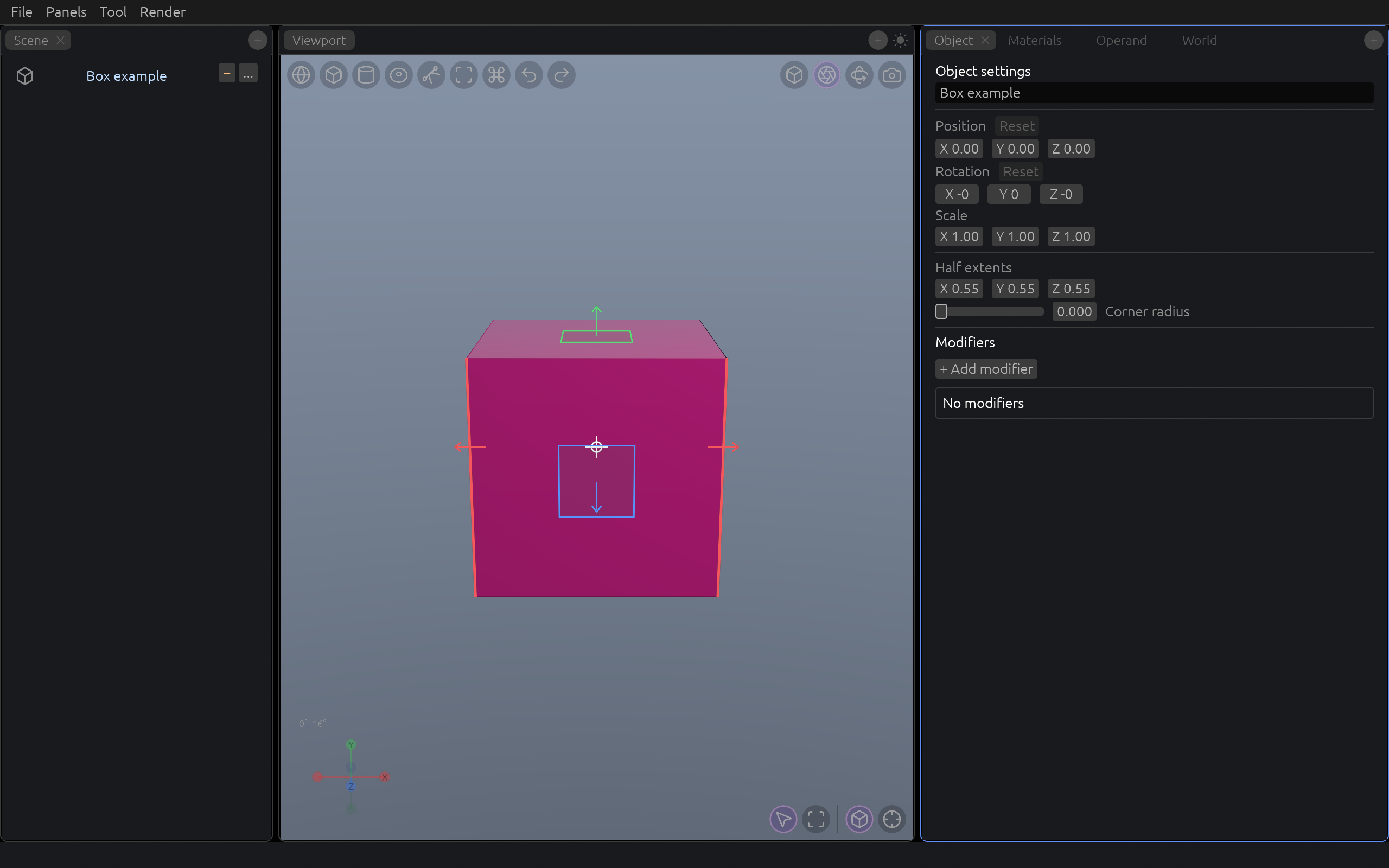
When an object is selected, the colored transform gizmo appears at its center. Drag a colored arrow to move on its X, Y, or Z axis, a colored square to scale on one axis, or a curved arc to rotate around an axis. The white controls move freely, scale uniformly, or rotate in the view plane. The gizmo follows a selected Boolean group as a whole.
Separate shape handles edit geometry rather than its overall transform: boxes show face rectangles and resize arrows, spheres show radius guides, cylinders also show height, and tori show major and tube radii. The small orientation gizmo at the lower-left corner snaps your view to an axis. Translucent wires through a Boolean target mark hidden operands; click one to select that exact shape.
Face cutting and extrusion
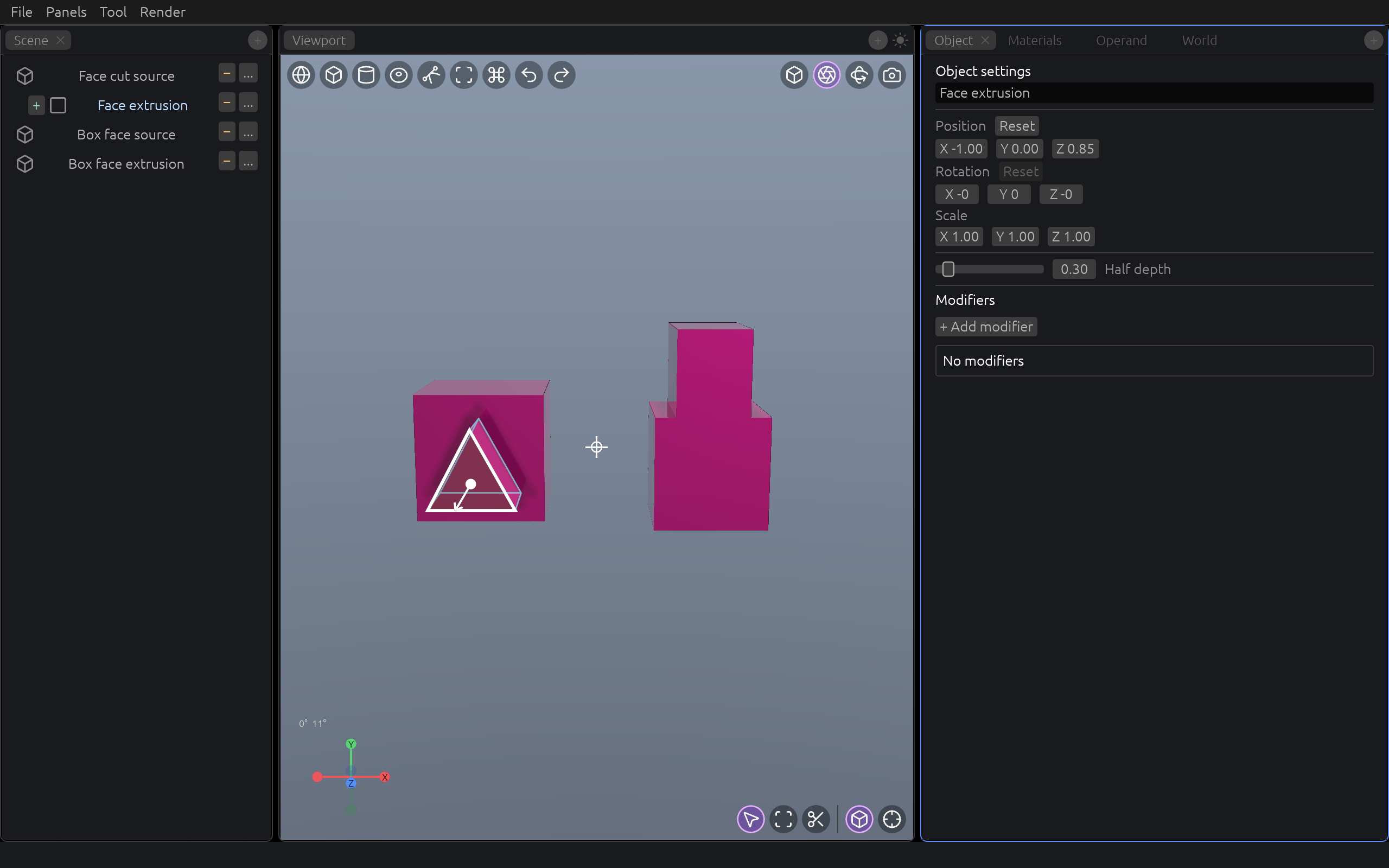
Select a box or cylinder, click it again to enter its exact selection, then click the face or cap you want. Press E to extrude it. Move the pointer to set the depth, then click or press Enter to confirm. The selected face stays available for further editing; Esc cancels the current extrusion.
For a custom outline, select a box or generated extrusion face and choose the scissors Face Cut tool in the viewport's lower-right corner. Click the outline's corners, then click the first corner or press Enter to close it. Choose a face region if prompted. Move the pointer away from the face for a raised shape or through it for a cut, then click or press Enter to finish. Backspace removes the latest point, Esc cancels, and holding Alt bypasses snapping guides.
Extrude a path
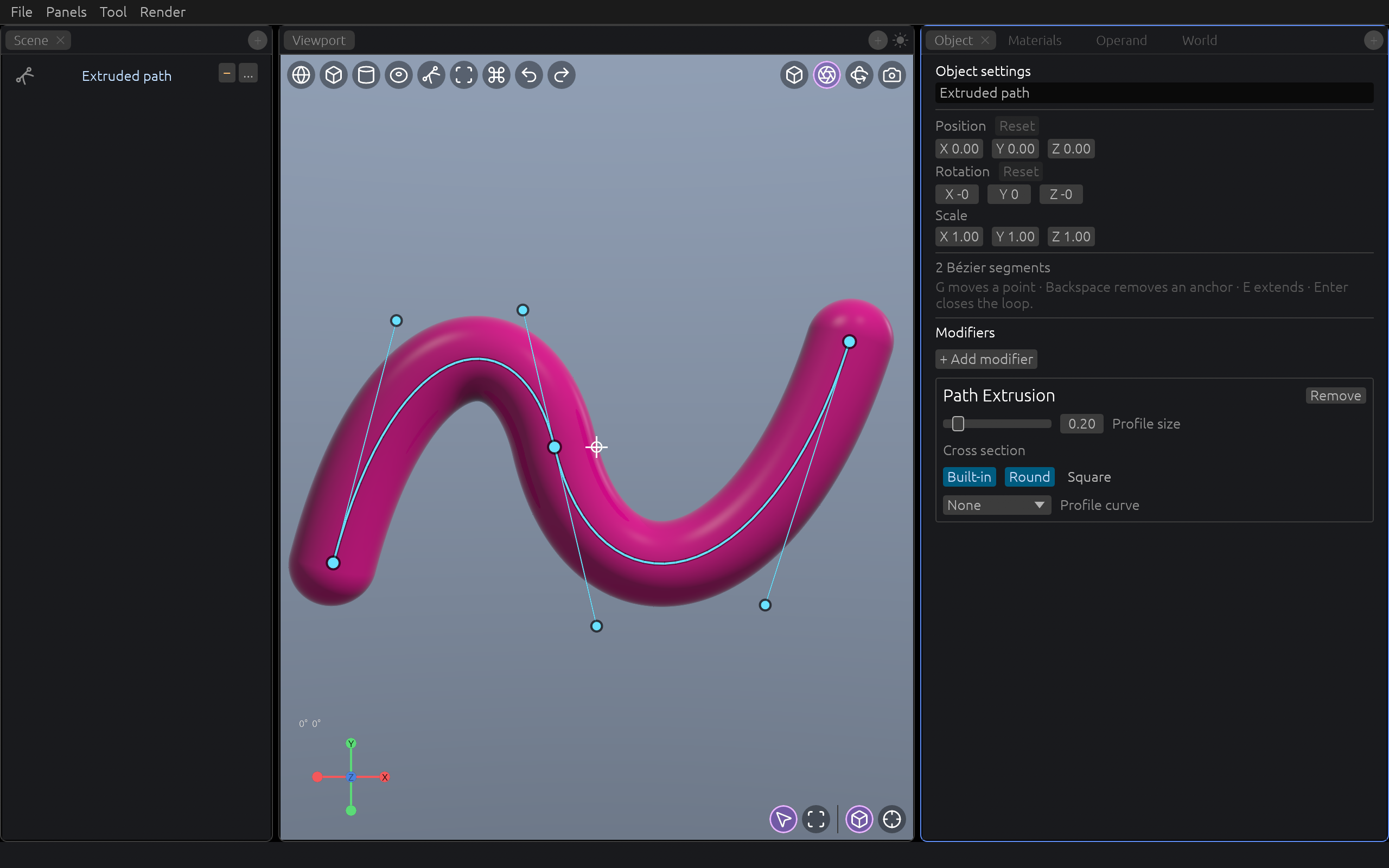
Add a Bézier curve, select it, then choose Object → Modifiers → + Add modifier → Path Extrusion. The curve becomes a solid tube. Set Profile size to change its thickness, and choose a round or square cross section. To sweep a custom shape, create another curve and choose it under Profile curve; its local XY outline is closed automatically.
Drag the curve's anchors and handles in the viewport to shape the path. Select an end anchor and press E to extend it; move the pointer and click to place the next anchor. Press G to move a selected point, Backspace to remove an anchor, or Enter on the last anchor to close the path. Esc cancels an extension in progress.
Combine shapes with Boolean groups
Union adds volumes, Subtract cuts one from another, and Intersect keeps only their shared volume. Select the target first and another object second, then use the combine buttons in the Scene panel or press +, -, or *. With only one object selected, a shortcut waits for you to pick the operand in the viewport or Scene tree; press Esc to cancel.
In the Scene tree, drag a shape or group onto a target row and choose the operation. A child's colored badge shows its operation and lets you change or detach it. The row's − button adds a subtractive shape directly. Select a whole group to move, rotate, or scale it together; click again in the viewport to reach an individual shape. The Operand tab changes an operand's operation and the group's edge softness. Set softness to zero for a sharp edge.
Clean up and reshape Gaussian splats
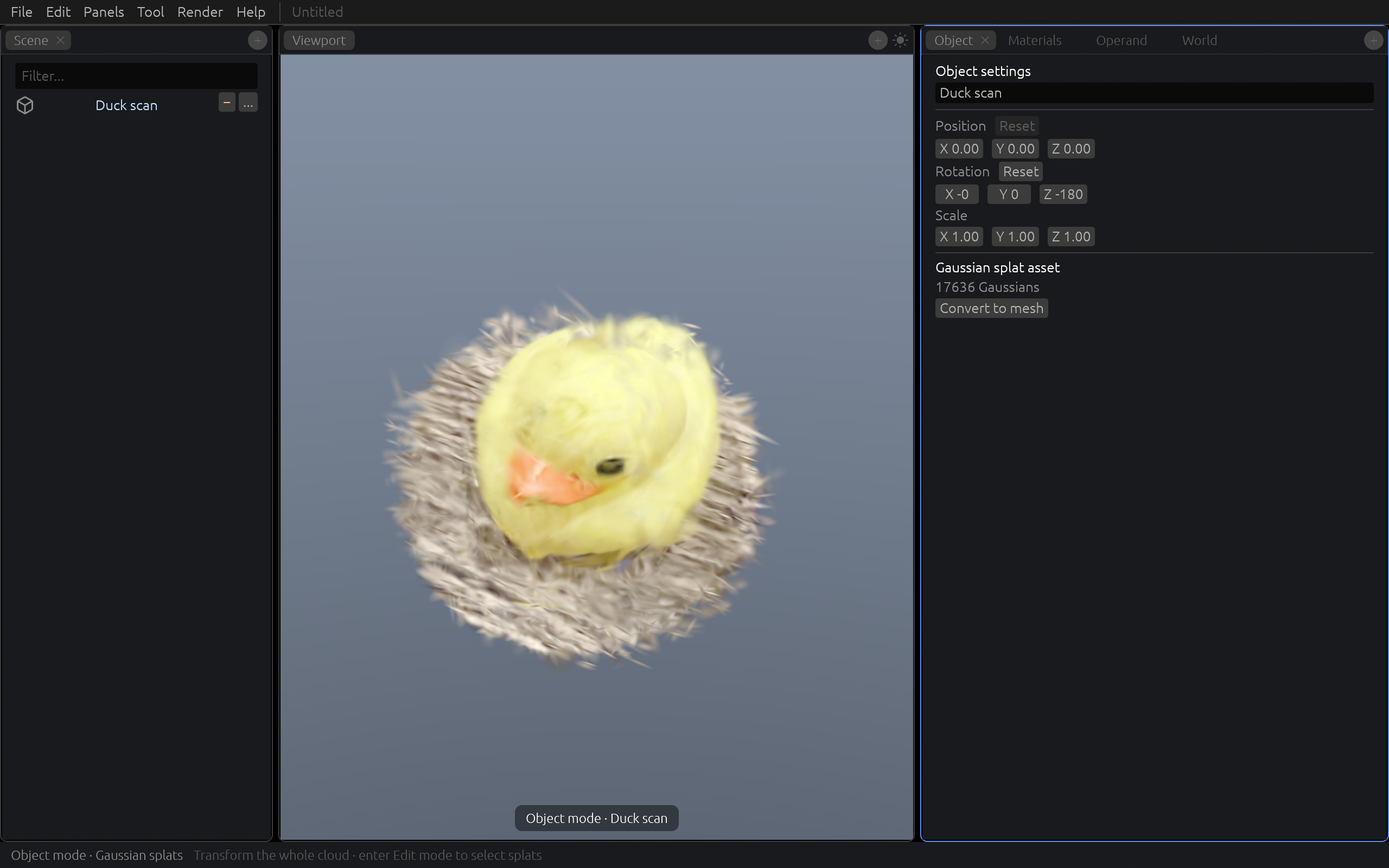
Import a Gaussian PLY with File → Import → Gaussian PLY…. The viewport frames the imported scan, which appears as one asset in the Scene tree. Select it once to work in Object mode, where the transform controls move, rotate, or scale the whole cloud. Click the selected cloud again in the viewport to enter Edit mode and select individual splats. The status bar names the current mode.
Select and remove unwanted points
- In Edit mode, click one unwanted splat or use Box select (B) to drag a rectangle. Circle select (C) lets you drag to paint a region. Hold Shift to add points or Alt to subtract them. With Circle select active, use Ctrl+scroll to change the brush radius.
- Check the highlight from another view before deleting: a screen-space selection can include splats behind the visible surface. Use Cmd/Ctrl+A to select every splat in Edit mode, or Cmd/Ctrl+I to invert the point selection.
- Press Delete or Backspace to remove the selected splats. Undo restores them. Press Esc to leave Edit mode.
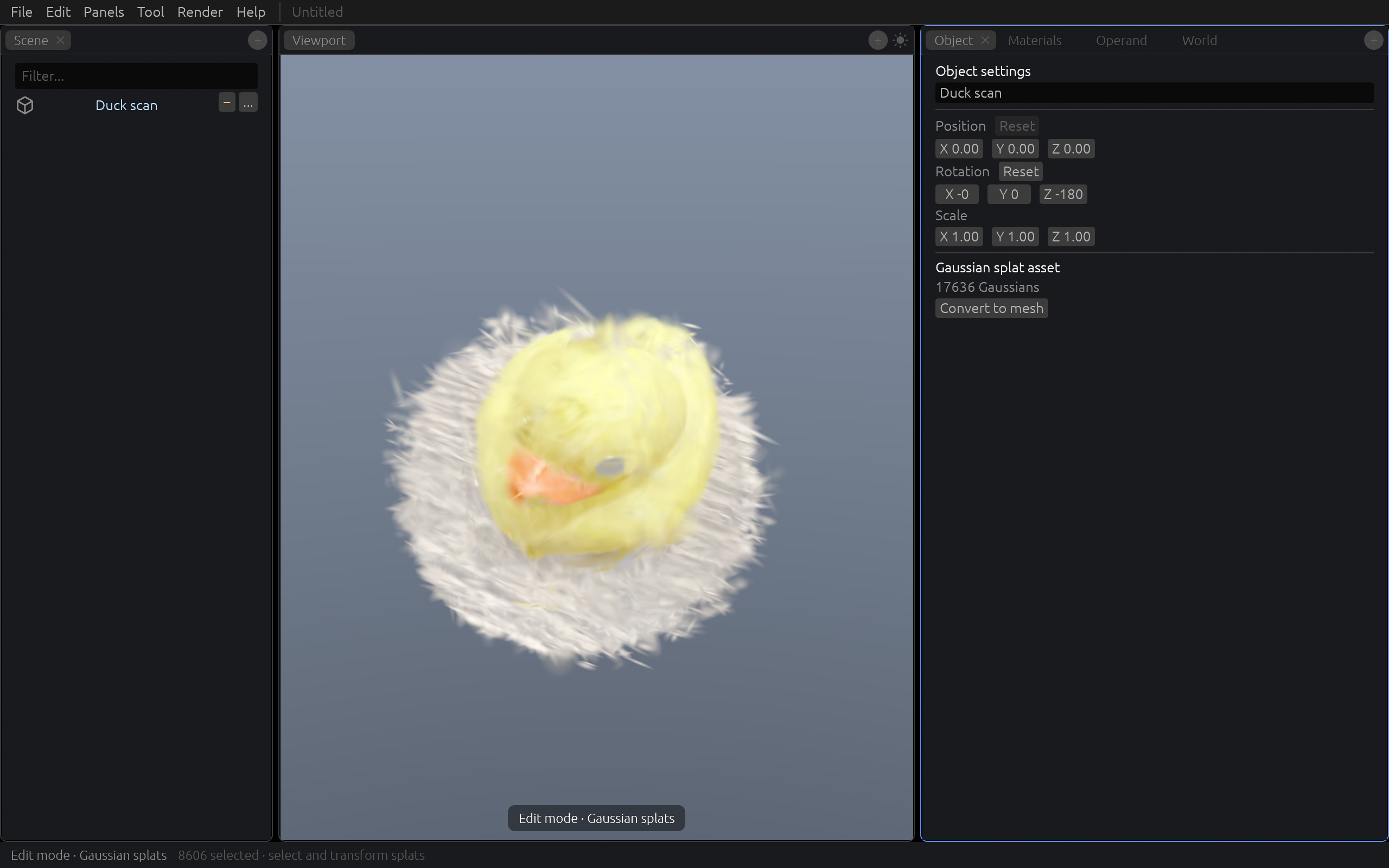
Reposition or reshape a region
With splats selected in Edit mode, press G to move, R to rotate, or S to scale them. Use the viewport gizmo for direct dragging. During a transform, X, Y, or Z constrains an axis; press Enter to accept or Esc to cancel. Unselected splats stay in place.
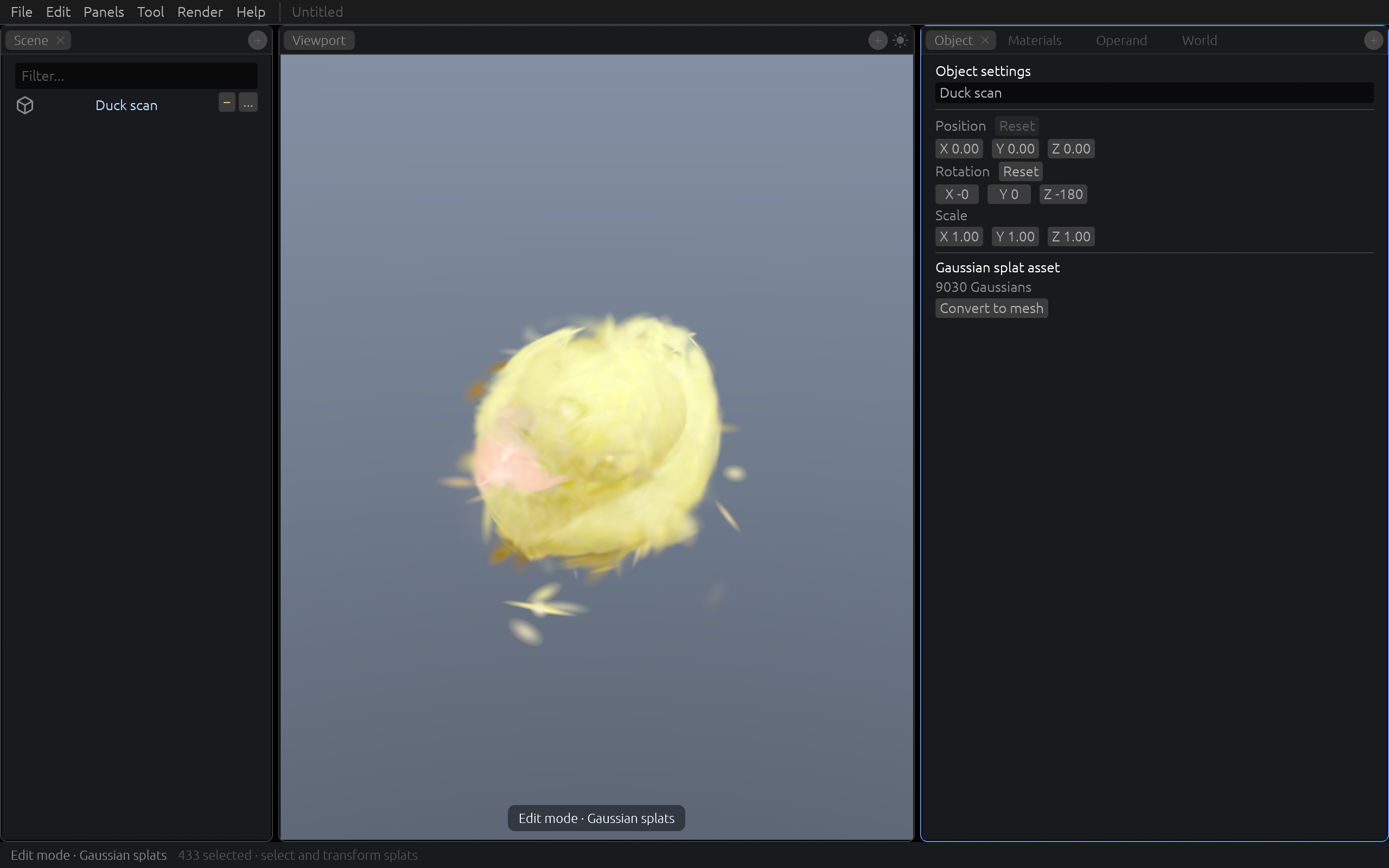
Save the project as .claydash to keep the editable cloud and its splat data. When the cleanup is finished and you need triangles, select the cloud and click Convert to mesh in the Object tab. Conversion reconstructs a textured surface, replaces the splat asset, and can be undone.
Choose and reuse materials
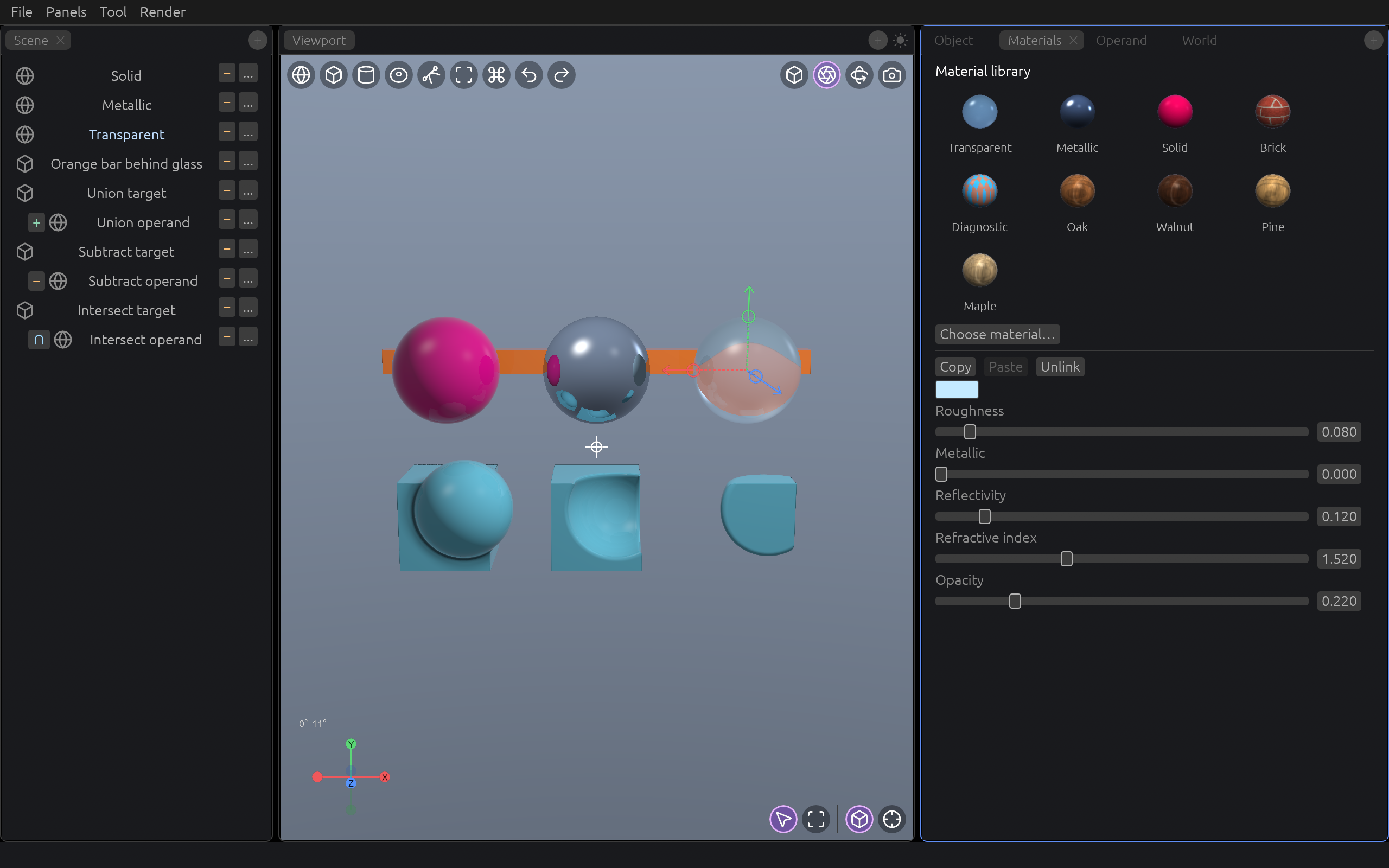
The Materials tab offers solid, metallic, transparent, and wood presets. Pick a material for selected objects, or choose one as the active material for new shapes. Adjust its color and other properties in the same tab. Materials are shared scene assets: changing a linked material updates every object using it. Use Unlink when one object needs its own copy. You can also copy, paste, and filter materials in the library.
Choose New WGSL material to make a custom shader. The editor accepts the body of a WGSL function with point, normal, view, and base inputs. Start with var surface = base;, change its fields, and finish with return surface;. Click Apply WGSL to compile it. Errors appear below the editor and leave the previous shader in place. Use the material picker to assign the same shader to other objects.
Repeat modifier
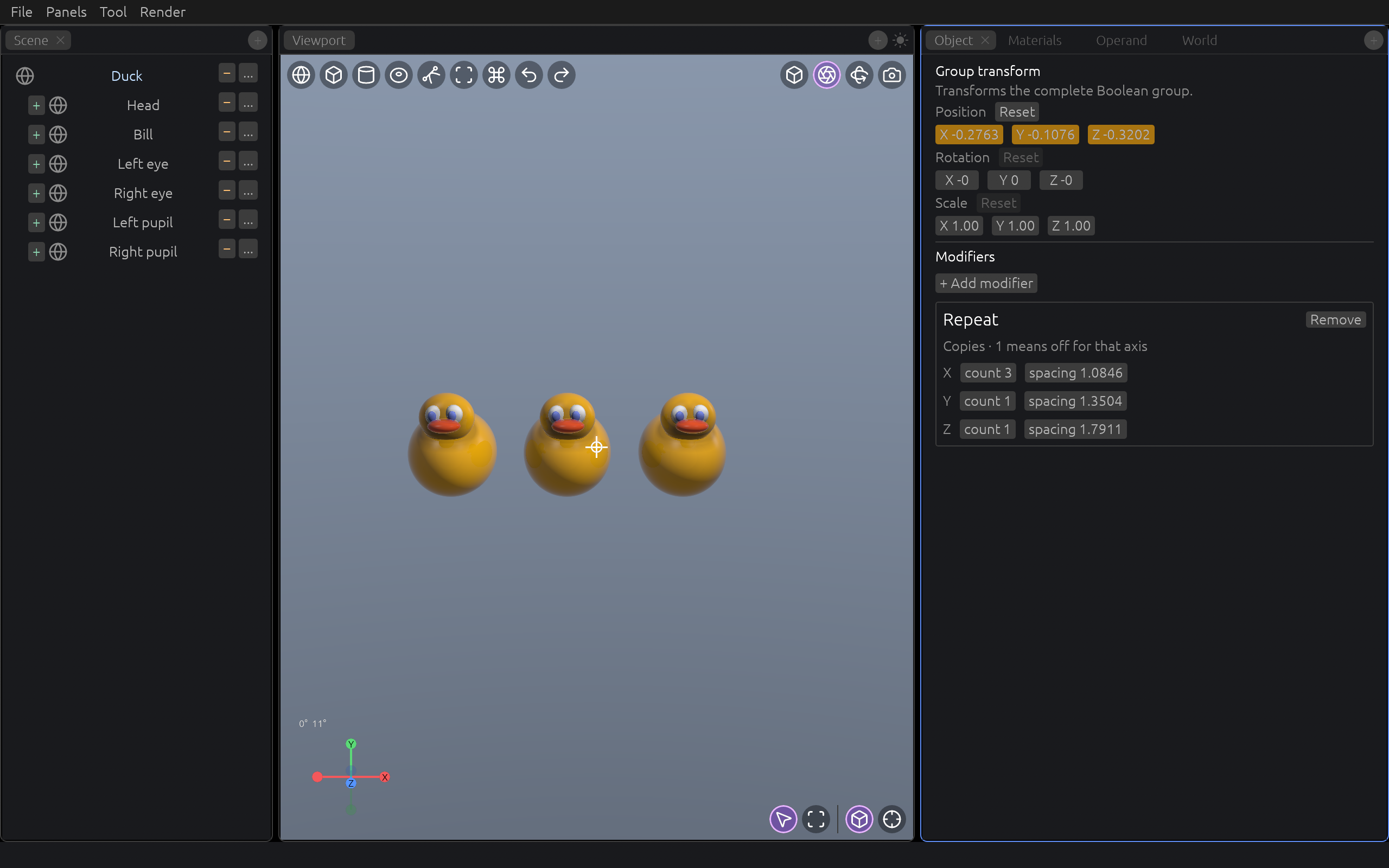
In the Object tab's Modifiers section, choose + Add modifier → Repeat. It starts with three copies along X. Set the copy count and spacing on each axis to create a finite pattern without adding a Scene row for every copy. A count of 1 leaves that axis unchanged. Select a complete Boolean group to repeat the assembled shape, such as the default duck, or select a primitive inside it to repeat just that part.
Mirror modifier
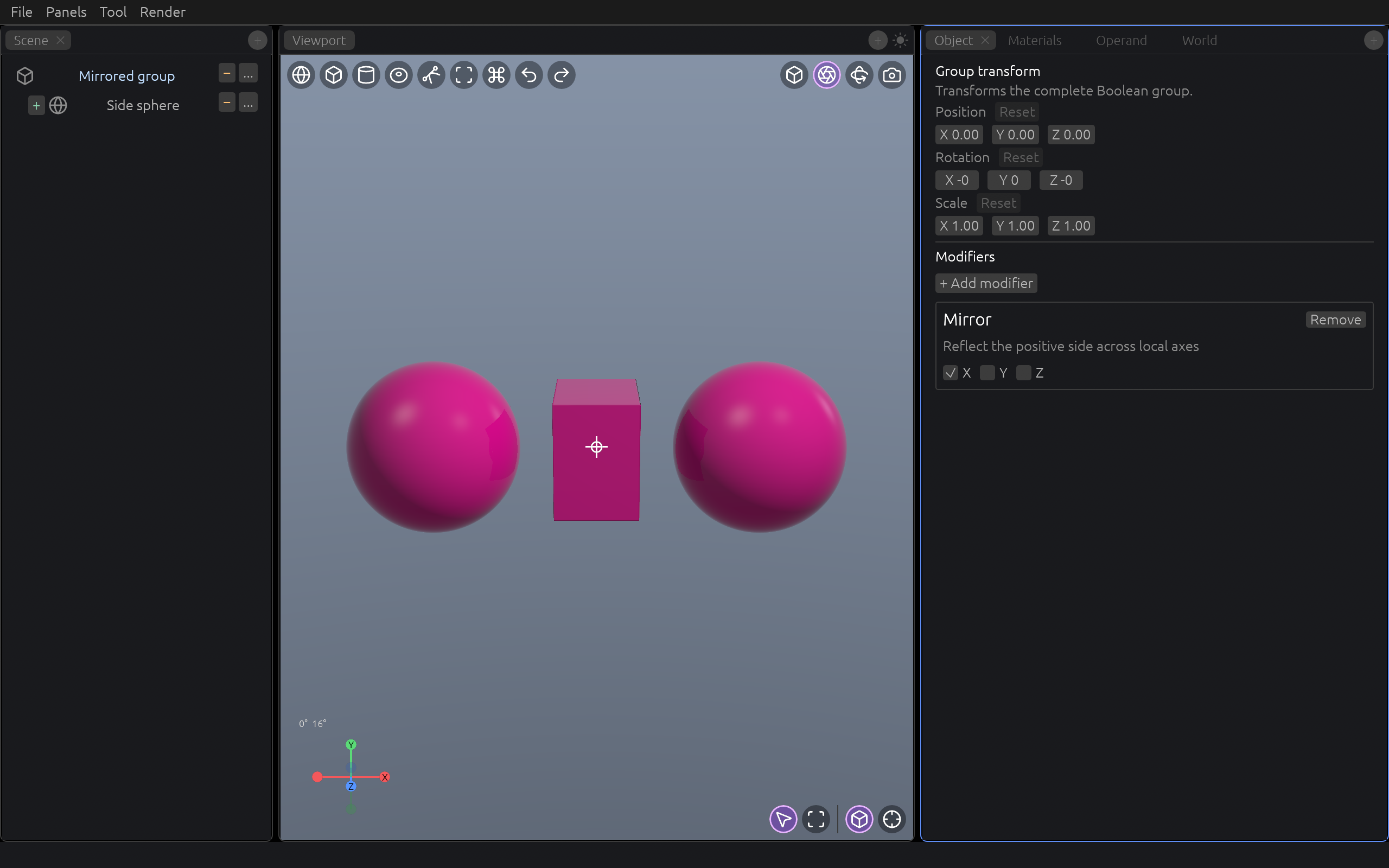
Select an object or a complete Boolean group, then choose Object → Modifiers → + Add modifier → Mirror. The modifier reflects the positive side of the selected object across its local X axis by default. Turn on Y or Z to mirror across those axes too. Moving a child shape on the positive side changes both halves of a mirrored Boolean group.
Deform with a lattice
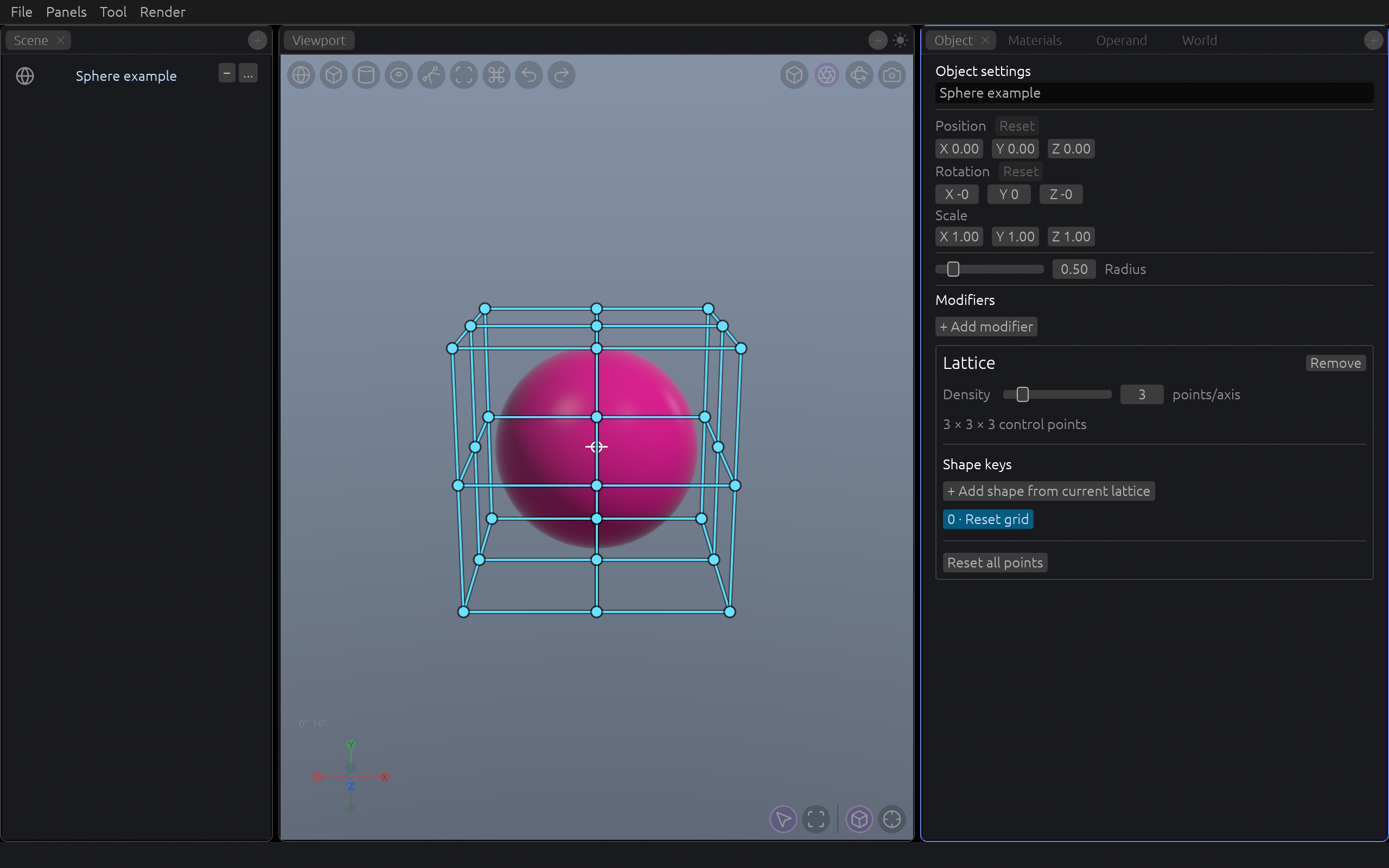
In the Object tab's Modifiers section, add a Lattice to one object or a whole Boolean group. Set its point density, then drag the visible cage points in the viewport to reshape the enclosed surface. Reset points to restore the original cage. Shape keys in this section let you save and animate different lattice forms.
Frame the scene with cameras
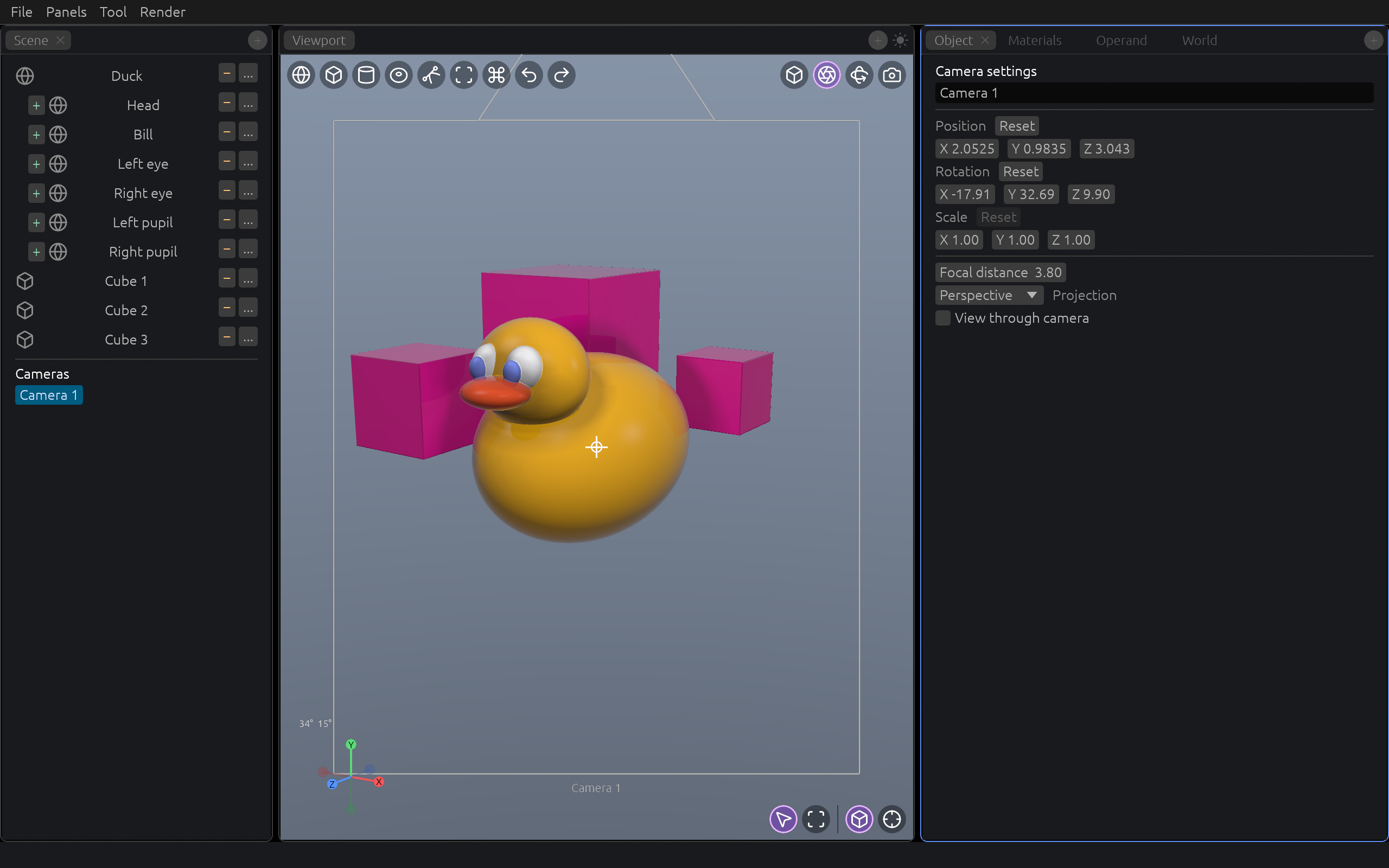
Use the viewport's top-right projection button to switch between perspective and orthographic views, or snap to an isometric view. The orientation gizmo helps align the viewport to an axis. The camera button creates a camera from the current view when needed and toggles the active camera view. Camera objects appear in the Scene tree; select one to edit its transform, focal distance, and projection in the Object tab.
Animate changes over time
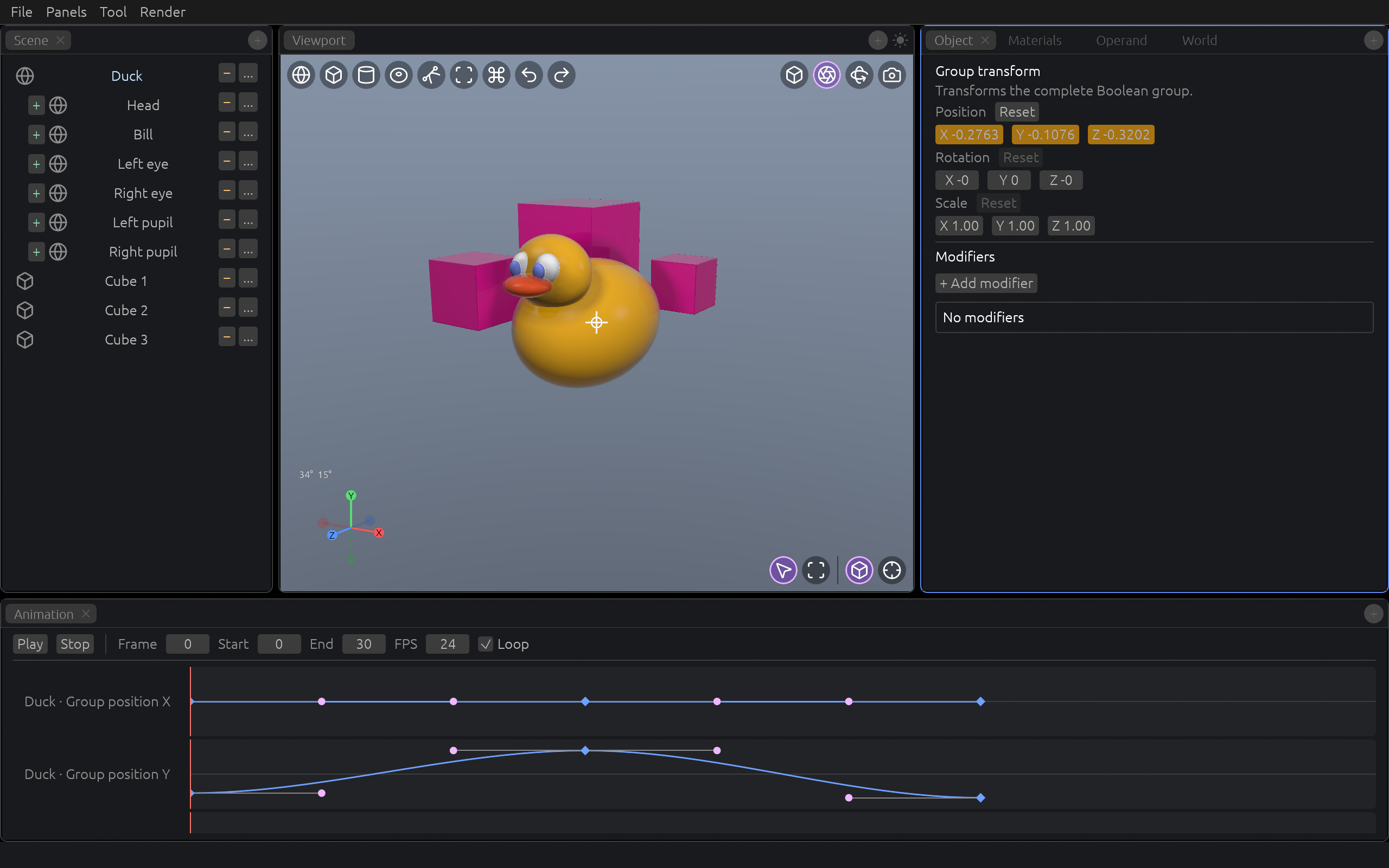
Open Panels → Animation Timeline to reveal the bottom editor. Scrub to a frame, hover a property in the Object, Materials, Operand, or Repeat inspector, and press I to add a keyframe. With the pointer over the viewport, I opens a menu for Location, Rotation, and Scale keys. The timeline shows one lane per animated property; drag a diamond to move a key, or click it to edit its value and easing. Use the transport controls to play, stop, or loop. Space toggles playback from the viewport, and arrow keys step through frames.
Save and render
File → Save stores the editable scene in a .claydash project; Open and Open Recent bring projects back. Use Render to export a WebP still or an MP4 of the animation range. Exports contain the rendered scene, without editor panels, handles, or labels. Dense scenes may take a little longer to finish sharpening before capture.
Connect an agent to the native app
The native Claydash app includes a local MCP server for coding agents. With the native window running, an agent can inspect and edit the live scene, capture viewport images, and save the project. Connect the agent to the claydash mcp command. See the agent setup and tool guide for configuration examples and the available actions.